Recently, especially since the launch of Prime, sharing Amazon accounts has become very popular thereby giving others access to your order history. Orders that you don’t want others to view occasionally appear in your Amazon account. You can solve this problem by archiving an Amazon order.
Important update: Amazon retired the Archive Order feature on August 19, 2025. The Archive Order button is gone from Your Orders, and any orders that were previously archived have been merged back into the regular order history. Amazon hasn’t given a public explanation, and there’s no announced plan to bring it back, though a community thread asking for its return has thousands of upvotes.
Below, we’ll cover what the feature used to do, what happened to orders that were archived under the old system, and what you can do today if you want to keep certain purchases more private.
This post will assist you in finding any archived orders you or someone else may have on your Amazon account. How to Find Orders Archived on Amazon? is what I’ll be explaining in this section.
I’ll also describe what Archived orders are on Amazon and how to archive an order before teaching you how to locate your Archived Orders and leaving some helpful information about them.
Please read with pleasure!
What Are “Archived Orders” on Amazon?
On Amazon, “Archived orders” used to refer to orders made through your account that you didn’t want to appear in your Default Order History. Amazon users frequently used this option to hide their order information from anyone sharing the account. A record of an order was still preserved once it was archived; the information was never removed, and archived orders still counted for returns, warranties, and customer service.
Under the old system, each account was only allowed to have 500 archived orders. That limit is no longer relevant now that the feature itself has been retired.
There was no automatic order archiving; you had to do it yourself. Since the feature is gone, this is no longer something you can do at all through the standard Amazon interface.
Why Archive Orders?
There are various reasons why you might not want your order to be visible in your order history, including; It might be a gift for a relative who also shares Amazon Prime with you, or perhaps an inappropriate order was placed and requires some level of anonymity, among other reasons.
Anybody with access to archived orders can still read your orders even after you archive them because they are just made invisible from showing in your order history.
How Archiving Orders Used To Work on Amazon
These steps no longer work since Amazon removed the feature in August 2025, but here’s how the process used to go, for reference:
- Sign in to your Amazon account.
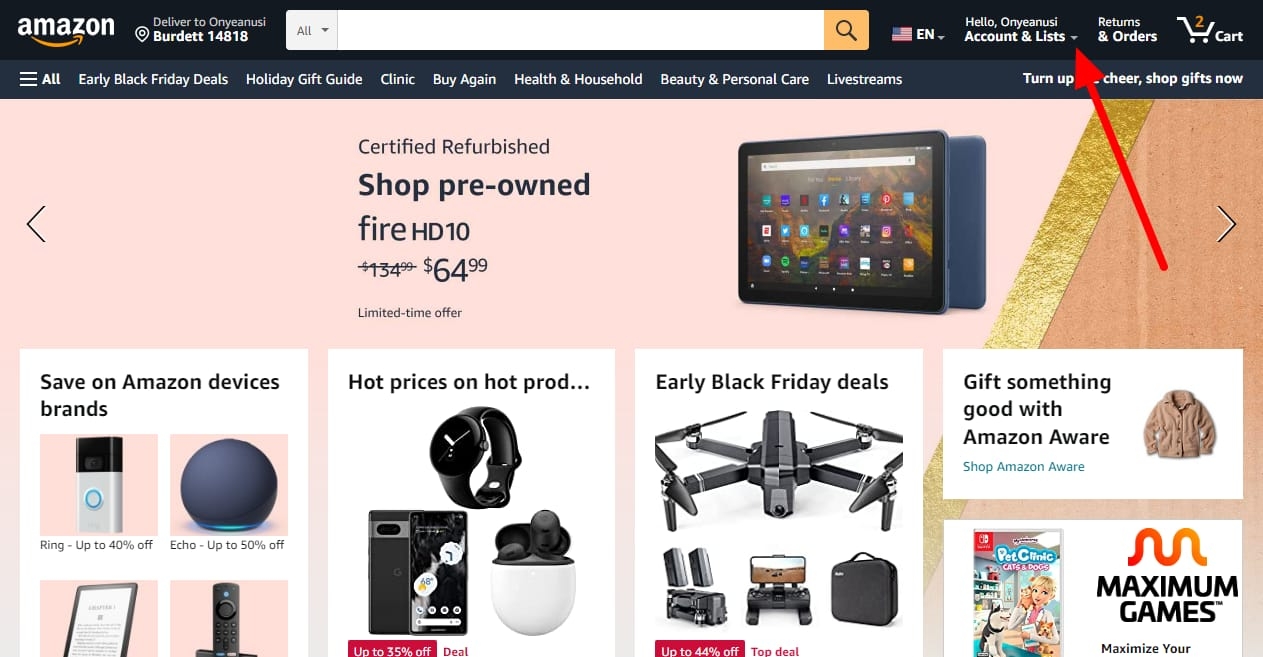
- Hover over Account & Lists and click Orders.
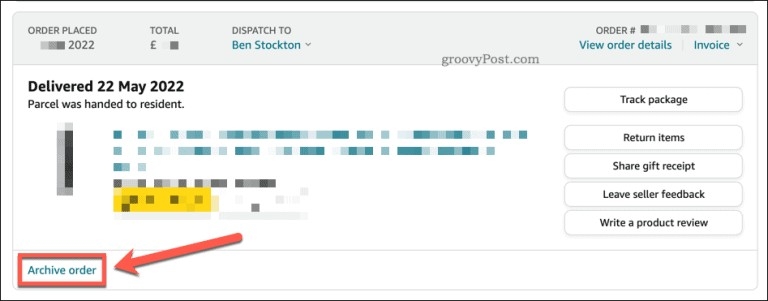
- Locate the order you want to archive by scrolling down. Click Archive Order in the lower left corner of the order.
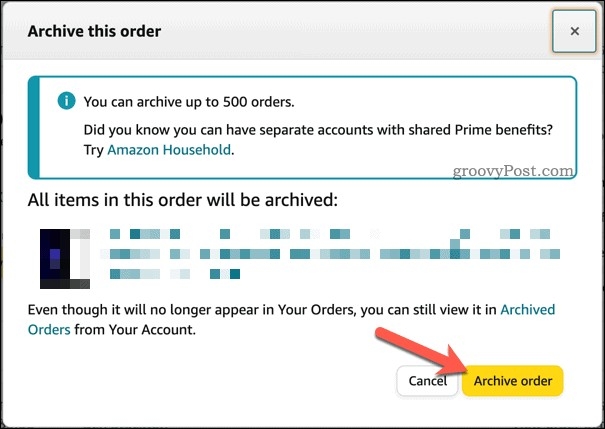
- Amazon will ask you to verify if you want to archive this order. Tap Archive Order again.
- A message confirming that the order has been archived should appear on the top of the screen.
That’s how the process worked when the feature was still available. Since it’s gone now, you won’t see these options in your account today.
Where Did My Previously Archived Orders Go?
Since Amazon merged the archive system back into the main order history on August 19, 2025, there’s no longer a separate “Archived orders” page to visit. If you had orders archived before that date, they’re simply back in your regular Your Orders list now, sorted by date like everything else. There’s no button to click and no extra step involved; Amazon did the transition automatically on its end.
Some users have reported that navigating directly to the old archive URL still loads a legacy view, but this isn’t guaranteed to work for everyone, and Amazon could close that off at any time since it’s not an officially supported path anymore.
Note: Even back when archiving orders was still possible, it didn’t clear your Amazon browsing history, which could still make it simple for someone to work out your most recent purchases just by looking at what you’d searched for or viewed.
Since order archiving is no longer available, here are a few things you can still do to keep your Amazon activity more private:
- Use Amazon Household to link accounts for family members while keeping each person’s order history separate.
- Use a separate Amazon account for purchases you’d rather keep private, so they never show up under a shared account at all.
- Manage or disable your browsing history, and turn off order confirmation emails if others have access to your inbox.
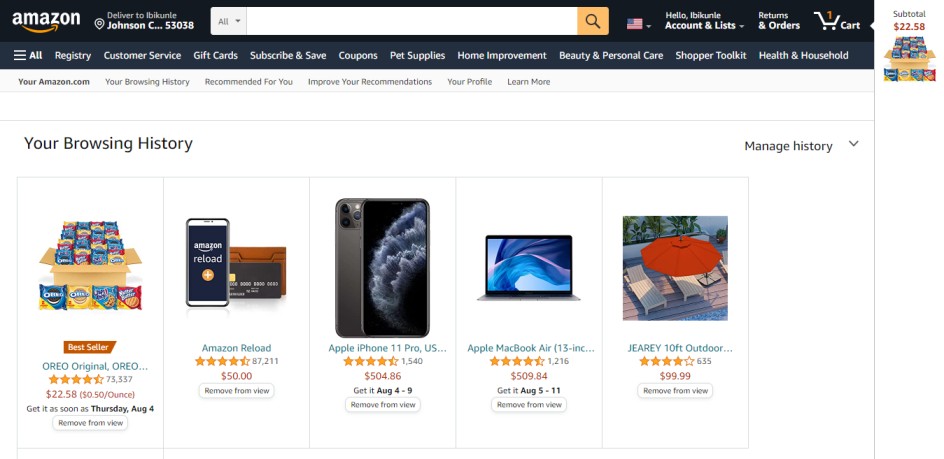
On Amazon, you can either completely disable your browsing history so that no one can view your recently viewed items or hide your browsing history search by removing individual items from it.
To hide your browsing history search on Amazon, here is what to do:
- Go to your Amazon website and log in to your account.
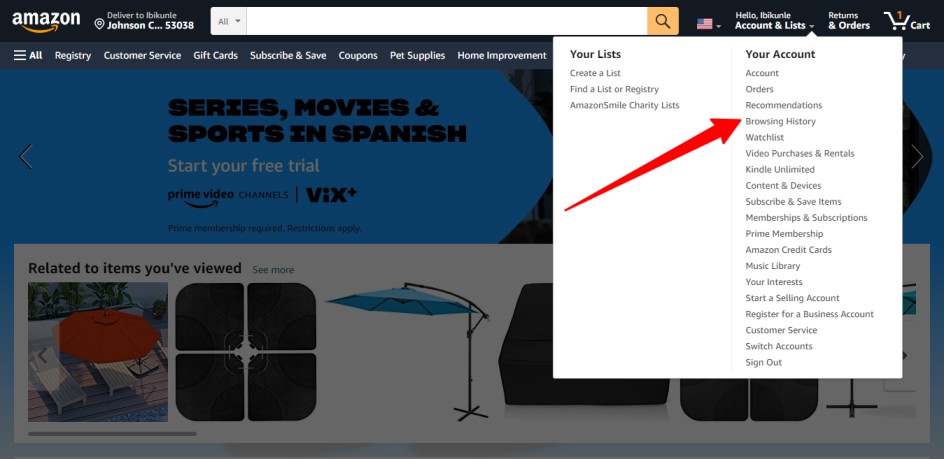
- Hover on Account & Lists and click on Browsing history.
- Find the item you want to remove and click the Remove from view button.
- You’ll then see a “Removed” message over the order, and the section will be grayed out. The order will disappear if you refresh the page.
How To Disable Browsing History on Amazon
You can disable your browsing history on Amazon by following the following steps:
- Hover on Account & Lists and click on Browsing history.
- Click on Manage History.
- Toggle the switch in front of Turn Browsing History On/Off
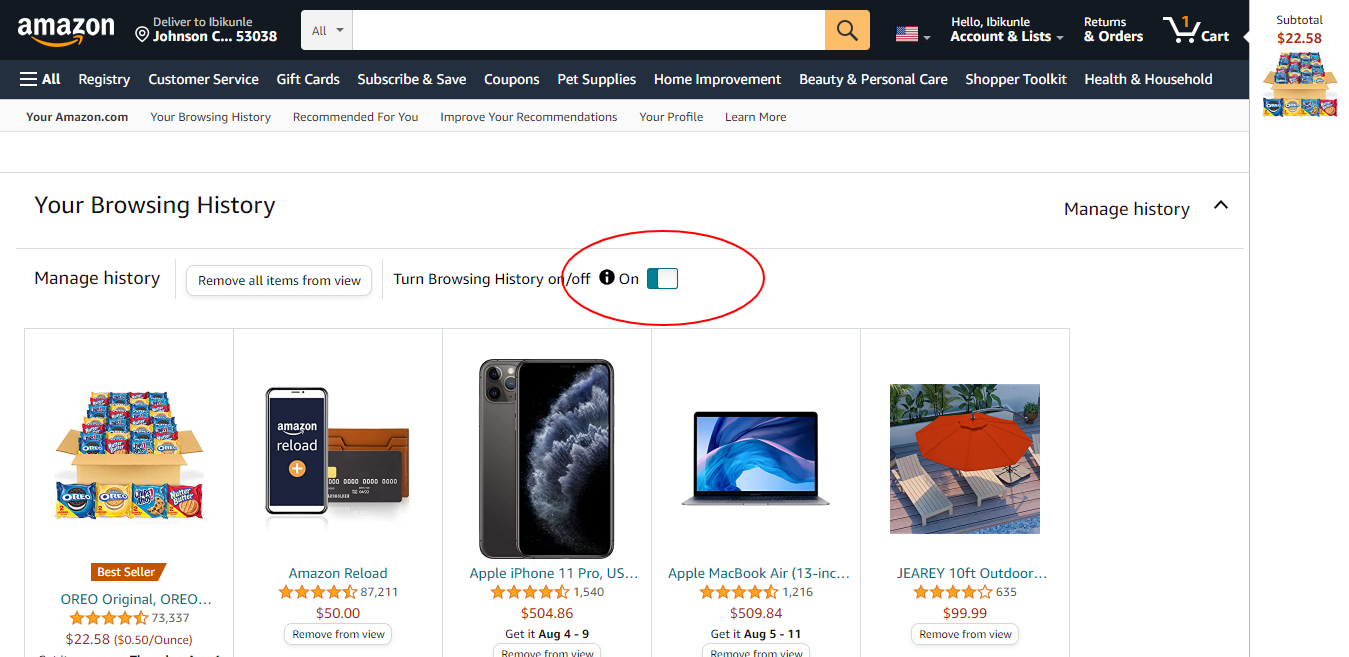
- You have successfully set up your account not to keep track of your browsing history anymore.
Final Thoughts
Amazon’s Archive Order feature was retired on August 19, 2025, and any orders that were previously archived have been merged back into your regular order history. From your Account page, you can view your past orders and interact with them as usual: examine the order details, repurchase items, request help, or submit a review. If you’re looking for more privacy on a shared account, your best options now are Amazon Household, a separate account for sensitive purchases, or managing your browsing history and email notifications.